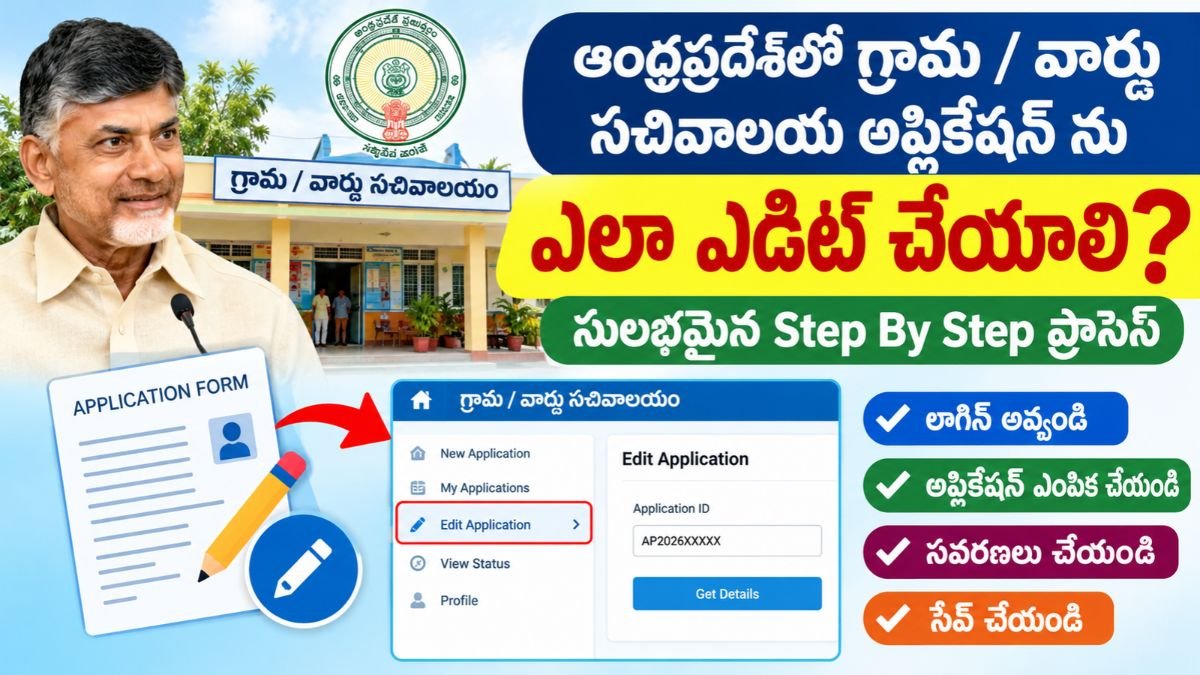
Complete Guide to Village Secretariat Application Edit (GSWS) in Andhra Pradesh
Applying for government welfare programs, civil supplies updates, land revenue services, or statutory certificates through the Andhra Pradesh Grama and Ward Sachivalayam (GSWS / AP Seva) network is a standardized, digital process. However, typographical errors, misspelled names, wrong contact numbers, or uploading blurry or mismatched documents can stall processing.
Once an error enters the system, it can trigger objections during field inspections or result in an outright rejection. Understanding how, when, and where to edit a submitted application helps ensure your file moves through the verification pipeline without unnecessary delays.
Home Page : https://ittelugunews.com/
1. What Is an Village Secretariat Application Edit in the GSWS System?
An Application Edit refers to the authorized modification or rectification of data fields and uploaded attachments in an active Secretariat service request before the competent authority issues a final decision.
Depending on the department managing the service (e.g., Revenue, Civil Supplies, Panchayati Raj, Social Welfare), certain data points can be modified directly by the citizen or through counter staff at the Secretariat.
Why Early Correction Is Critical
A minor clerical mistake can have cascading consequences across state databases:
| Typographical or Entry Error | Operational Impact on Processing |
| Incorrect Mobile Number | Missed OTPs, failure to receive field inquiry dates, and missing certificate download links. |
| Name or Parentage Typo | Mismatch with primary government identification databases, triggering rejection during scrutiny. |
| Wrong Survey / Khata Number | Field inspections by Village Revenue Officers (VROs) get redirected or rejected for incorrect boundaries. |
| Blurry / Incorrect PDF Upload | Scrutiny officers flag the file under “Defective Documents” and send it back for clarification. |
| Address / Ward Code Error | Application routes to the wrong administrative jurisdiction, causing cross-departmental transfer delays. |
2. Permissible vs. Non-Editable Details
Not all fields on a submitted application can be amended. The government portal enforces strict security protocols to prevent fraudulent substitutions.
       [PERMISSIBLE EDITS]                     [RESTRICTED / LOCKED]
  • Name spellings & initials             • Primary Applicant Identity
  • Active mobile & email address         • Entire Service Category change
  • Door number / street details          • Core Caste / Community status
  • Re-uploading illegible documents      • Complete property ownership transfer
  • Supporting family roster data         • Post-approval certificate details
Editable Fields (Subject to Verification)
- Demographic Details: Minor phonetic corrections in applicant or parent names, correcting gender or date of birth (supported by formal proof such as a birth certificate or school records).
- Communication Data: Updating primary phone numbers to ensure status tracking and OTP receipt.
- Document Replacement: Swapping an unreadable, corrupted, or incorrectly uploaded PDF attachment with a high-resolution scan of the original document.
- Locality & Address: Updating house numbers, landmark descriptions, or street names within the same administrative jurisdiction.
Non-Editable Core Fields (Requires Fresh Application)
- Applicant Identity: You cannot substitute one individual for another under an existing Application ID.
- Service Type: A request submitted for an Income Certificate cannot be changed to an Integrated Community Certificate.
- Post-Approval Records: Once a Tahsildar, Municipal Commissioner, or Welfare Officer has digitally signed and approved a document, it cannot be edited. Rectifying an approved certificate requires applying through a formal Correction / Mutation Service or raising an administrative grievance.
3. Workflow Stages: When Can You Edit?
Your ability to edit depends directly on the file’s current position in the administrative workflow:
| Processing Stage | Edit Feasibility | Required Action |
| Submitted / Pending Scrutiny | High | Digital Assistant or operator can recall or edit entries before forwarding the file. |
| Returned for Clarification (Query Raised) | Open | The system re-opens specific fields or upload prompts specifically for the applicant to rectify. |
| Field Verification in Progress | Restricted | Requires the inspecting field officer (VRO, Panchayat Secretary, Welfare Assistant) to endorse a modification request. |
| Pending Final Signature | Very Low | Only the competent authority can reject the file back to the desk level for re-entry. |
| Approved / Rejected | Locked | No edits permitted. If approved with errors, apply for a formal certificate correction. If rejected, submit a fresh application. |
4. Step-by-Step Procedure to Request an Application Edit
Method 1: In-Person at the Village / Ward Secretariat (Standard Method)
- Locate Your Service Reference: Retrieve your Application Acknowledgement / Receipt containing the unique Application ID or Service Request Number (SRN).
- Assemble Evidentiary Records: Gather the original and self-attested photocopies of the documents supporting the correction (such as standard identity proof, birth certificate, or land title).
- Visit the Secretariat Counter: Meet the Digital Assistant (in rural secretariats) or the Ward Data Processing Secretary (in urban secretariats) where the request was originally filed.
- Initiate Verification: The operator opens the internal staff dashboard, retrieves your file using the Application ID, and checks if the modification window is active.
- Update and Authenticate: The operator enters the corrected details or re-scans the clean document. Where biometric or OTP validation is required, authenticate the update using your registered mobile number.
- Obtain Revised Slip: Ensure you collect an updated transaction receipt or written confirmation showing the modified entry and timestamp.
Method 2: Responding to an Online Query (“Returned for Clarification”)
When an inspecting officer notices an issue during desk scrutiny or field inquiry, they do not always reject the application immediately. Instead, they flag the file as “Returned for Clarification” or “Resubmit Documents”:
- Check SMS Alerts: The portal issues an automated SMS stating that an inquiry or query has been raised against your Application ID.
- Access the AP Seva Citizen Portal: Log in to the official service portal using your registered mobile number and OTP.
- Open Pending Requests: Navigate to the Application Status tab and locate the flagged transaction.
- Review Officer Remarks: Read the specific discrepancy noted by the officer (e.g., “Upload clear copy of registered sale deed” or “Parent name mismatch with identity proof”).
- Upload the Rectified File: Upload a clear PDF scan (strictly adhering to the portal’s file size limit, typically under 1 MB to 2 MB) addressing the specific remark.
- Submit Response: Click Submit. The file immediately re-enters the field verification queue without requiring payment of an additional service fee.
5. Document Checklist for Common Edits
Before visiting the counter or uploading replacement files, ensure your supporting documents match the specific correction:
- Name Spelling / DOB Correction: SSC certificate, date of birth certificate, or primary government identity proof showing the exact spelling.
- Address Rectification: Recent electricity bill, registered lease deed, property tax receipt, or standard residential documentation.
- Replacement of Faulty Uploads: Fresh, color scans of original certificates (avoid low-resolution photocopies or blurry smartphone images).
- Survey / Agricultural Land Errors: Certified copy of the Pattadar Passbook, 1B register extract, or registered sale deed showing the correct survey boundaries.
6. Critical Mistakes to Avoid
- Do Not Handwrite Changes on Printed Slips: Modifying an official printed receipt with a pen does not alter the digital database. All edits must be processed electronically through the portal.
- Do Not File Duplicate Applications Immediately: If your application contains an error, do not rush to file a second application for the same service. Duplicate entries often cause database collisions and can lead to both requests being rejected during automated portal validation.
- Do Not Ignore Resubmission Deadlines: If a file is returned with a remark for clarification, rectify it promptly. Most departmental workflows automatically close or reject unaddressed queries after a stipulated period (typically 7 to 15 days).
- Do Not Rely on Verbal Assurances: Always request a digital confirmation or check the portal dashboard to confirm that the operator successfully updated the database record before leaving the counter.
Official Government Portals for Support and Escalation
- AP Seva Integrated Portal:
vswsonline.ap.gov.in - Grama Ward Sachivalayam Portal: https://sgsw.ap.gov.in/GSWS/Home/Main
- MeeSeva Online Citizen Services:
onlineap.meeseva.gov.in - Public Grievance Redressal (Spandana): https://pgrs.ap.gov.in/
Official Andhra Pradesh Government Links
https://gsws.ap.gov.in/
https://ap.gov.in/
https://vsws.ap.gov.in/
Related Pages
Village Secretariat Application Documents Andhra Pradesh
Village Secretariat Application Correction Andhra Pradesh
Village Secretariat Application Verification Andhra Pradesh
Village Secretariat Application Tracking Andhra Pradesh
Village Secretariat Application Approval Andhra Pradesh
Village Secretariat Application Rejection Andhra Pradesh
Village Secretariat Application Status Andhra Pradesh
Village Secretariat Online Apply